
ติดตั้ง Claude Codeinstall Claude Code
คู่มือติดตั้งแบบมีวิดีโอนำ ใช้สคริปต์ติดตั้งของ Mervia แล้วเช็กว่าเครื่องเรียกคำสั่ง claude ได้จริงvideo-first setup guide for installing Claude Code with the Mervia setup script, then verifying that the claude command works
This guide gets your machine ready to use Claude Code. The goal is simple: your computer should be able to run claude.
The Mervia setup script calls the official Claude Code installer, installs Node.js, then checks the pieces students commonly get stuck on: PATH and a final verification pass.
01. check your Claude account
Use the Claude account you plan to use for Claude Code. It needs access to Claude Code, such as Pro, Max, or an organization-provided account.
I will show where to check the account in the video, but I will not walk through payment or subscription signup. Handle that first if your account is not ready yet.
02. run the setup script
Terminal บน Mac และ PowerShell บน Windows คือโปรแกรมที่มากับเครื่องอยู่แล้ว ไม่ต้องติดตั้งอะไรเพิ่มTerminal on Mac and PowerShell on Windows are already on your computer. Nothing extra to install.
หน้าตาเป็นหน้าต่างสีเข้ม ๆ ที่ให้เราพิมพ์คำสั่งเป็นข้อความเพื่อสั่งให้คอมพิวเตอร์ทำงาน แทนการคลิกเมาส์It is a text window where you type commands to tell your computer what to do instead of clicking with a mouse.
วิธีเปิดบน Mac: กด Cmd + Space พิมพ์ Terminal แล้วกด EnterOn Mac: press Cmd + Space, type Terminal, then press Enter.
วิธีเปิดบน Windows: กดปุ่ม Windows พิมพ์ PowerShell แล้วกด EnterOn Windows: press the Windows key, type PowerShell, then press Enter.
ไม่ต้องกลัวพิมพ์ผิด ถ้าพิมพ์คำสั่งผิด เครื่องแค่ตอบว่าไม่รู้จักคำสั่งนั้น ไม่มีอะไรเสียหายDo not worry about typos. If you mistype a command, the computer just says it does not recognize it. Nothing breaks.
- 01.เปิด Terminal ด้วย
Cmd + Spaceแล้วพิมพ์TerminalOpen Terminal withCmd + Space, then typeTerminal. - 02.คัดลอกคำสั่งด้านบน วางลงใน Terminal แล้วกด EnterCopy the command above, paste it into Terminal, then press Enter.
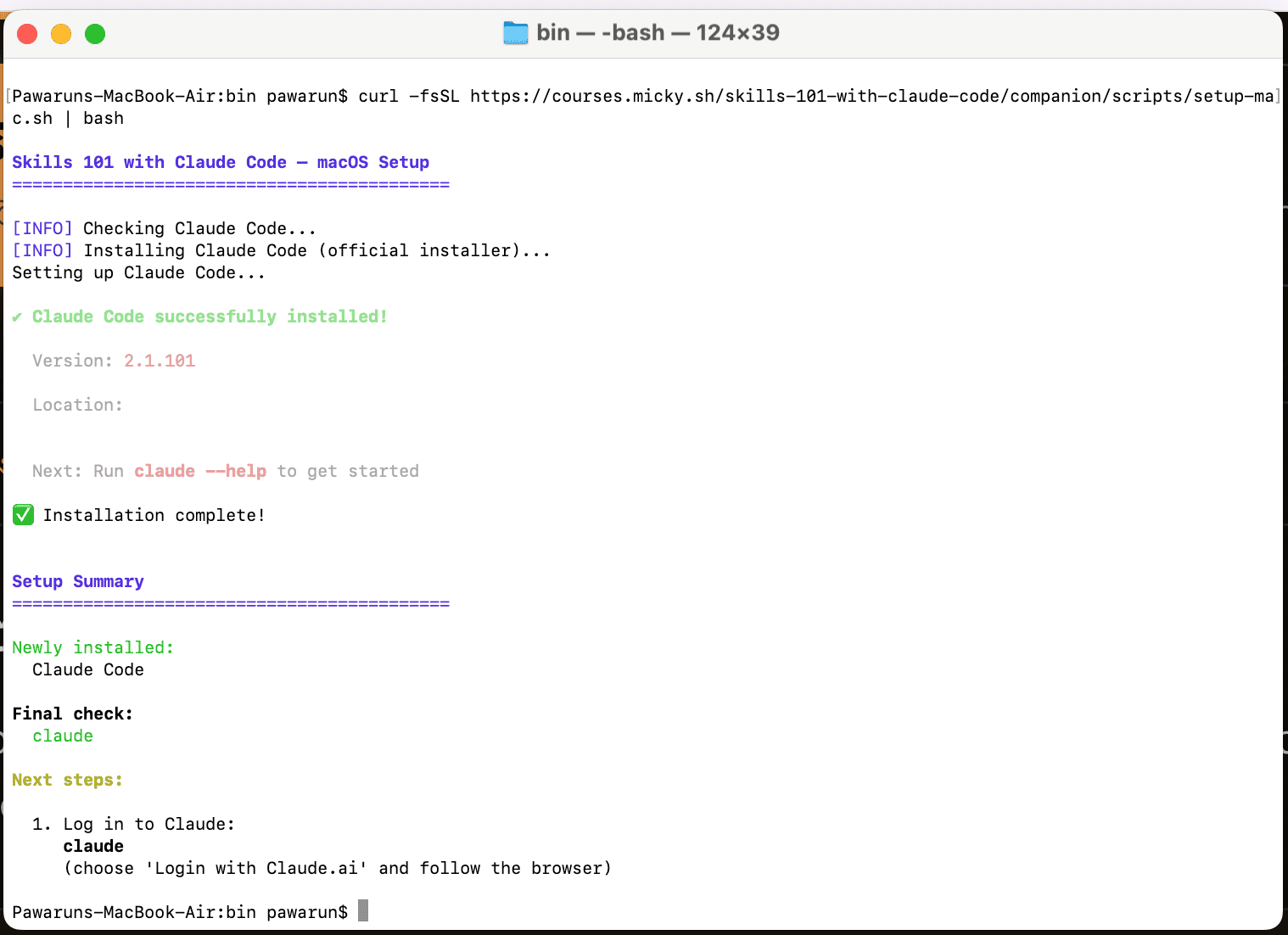
ถ้าติดตั้งสำเร็จ จะเห็นข้อความสรุปประมาณนี้:If installation is successful, you should see a summary like this:
- 01.ปิด Terminal แล้วเปิดใหม่Close Terminal and reopen it
- 02.พิมพ์
claudeแล้วกด Enter เพื่อเข้าสู่การตั้งค่าครั้งแรกTypeclaudeand press Enter to start the first-time setup
03. log in and check that Claude opens
After the script finishes, close Terminal or PowerShell and open it again.
claude
Claude Code may open your browser for login and authorization. Use the Claude account you will use in class.
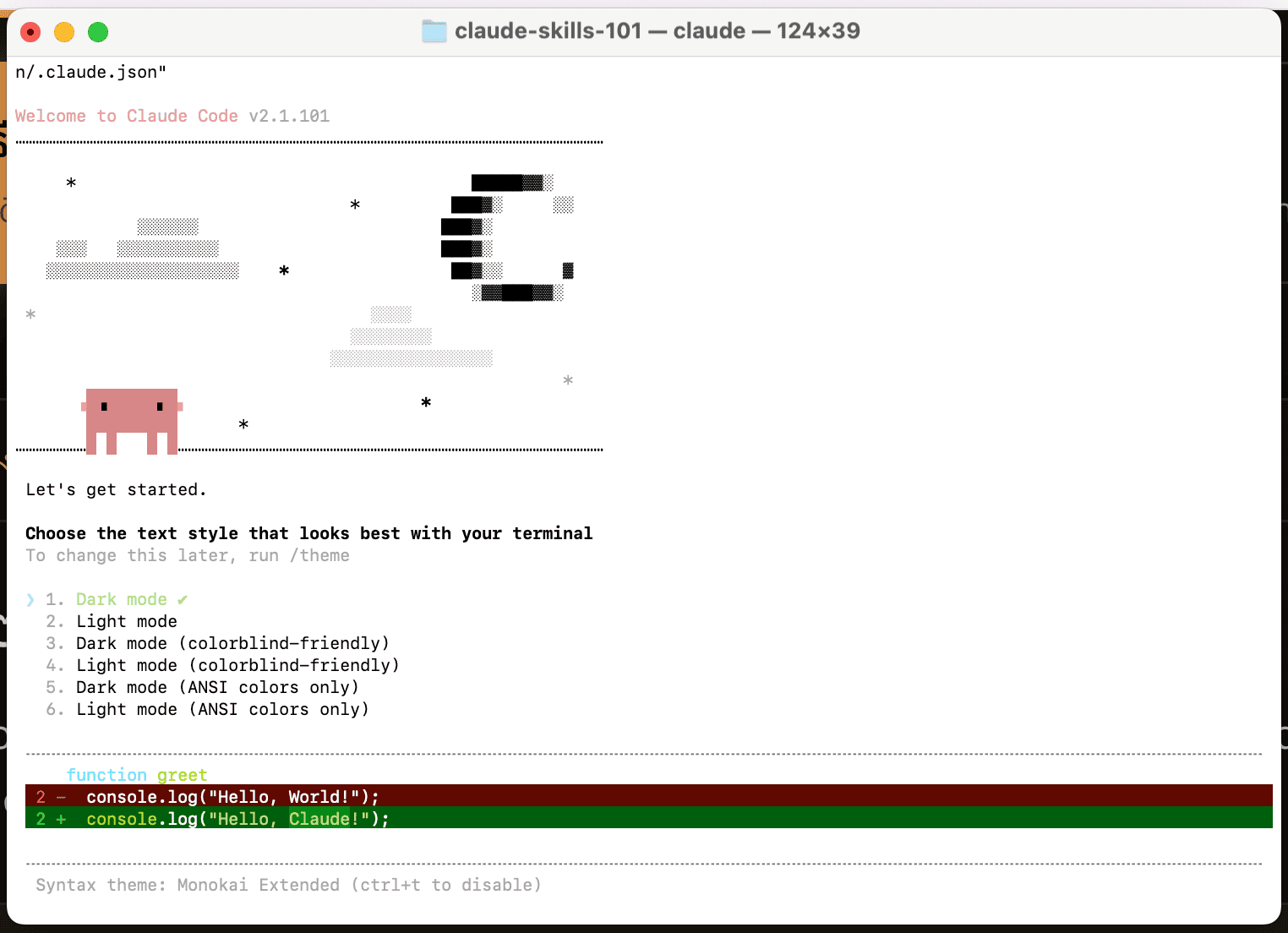
ทำตามหน้าจอด้านล่างให้จบ ถ้าเลือกผิดไม่เป็นไร ทุกอย่างเปลี่ยนทีหลังได้Follow the screens below. If you choose the wrong option, it is fine; everything can be changed later.
เลือก style หรือธีมสี ใช้ลูกศรขึ้นลงเพื่อเลือก แล้วกด Enter ถ้าไม่แน่ใจเลือกอันแรกได้เลย เปลี่ยนทีหลังได้Choose a style or color theme. Use the arrow keys, then press Enter. If unsure, choose the first option. You can change it later.
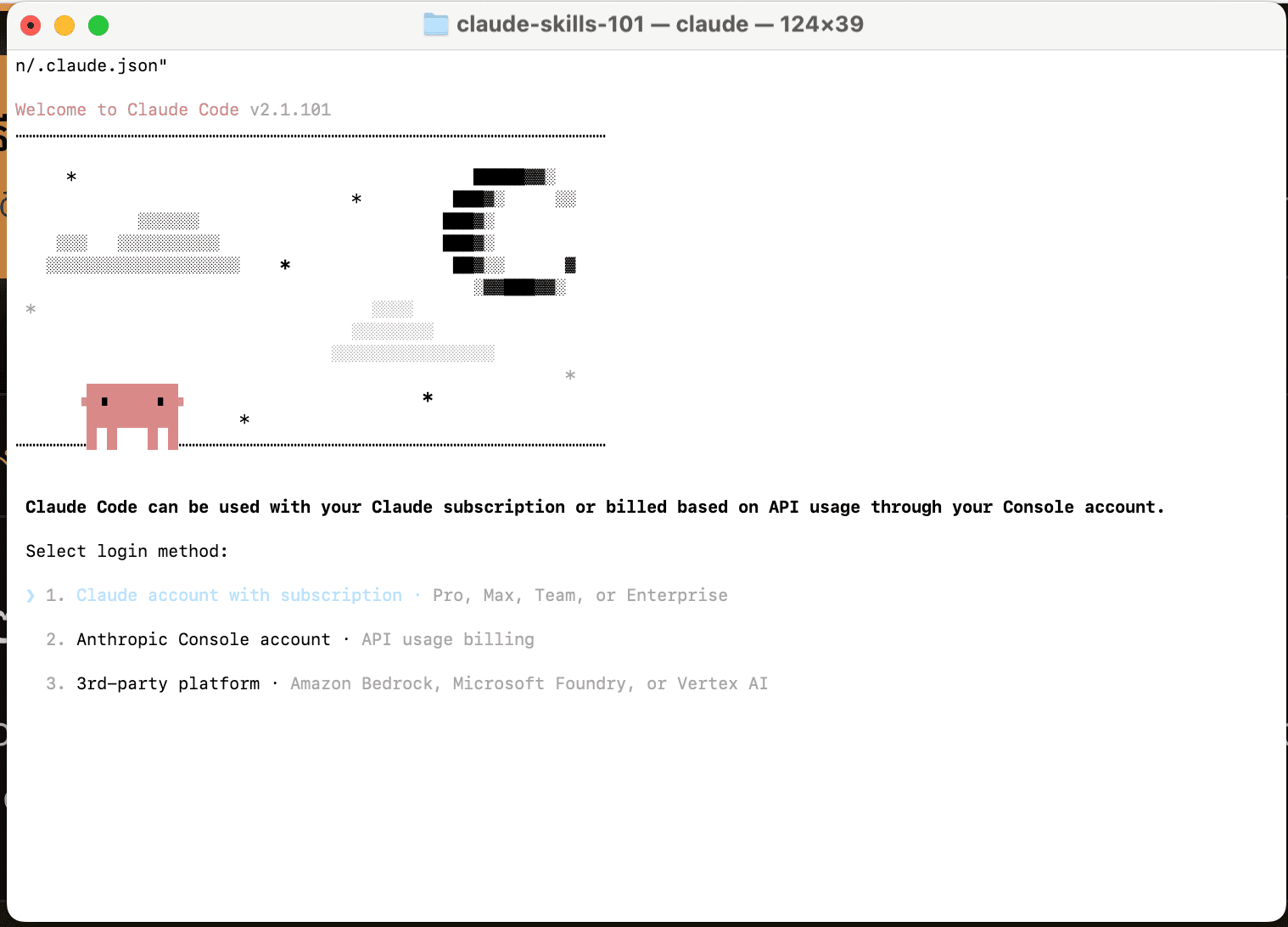
เลือก login method เป็นอันแรก Claude account with subscription แล้วกด EnterChoose the first login method: Claude account with subscription. Then press Enter.
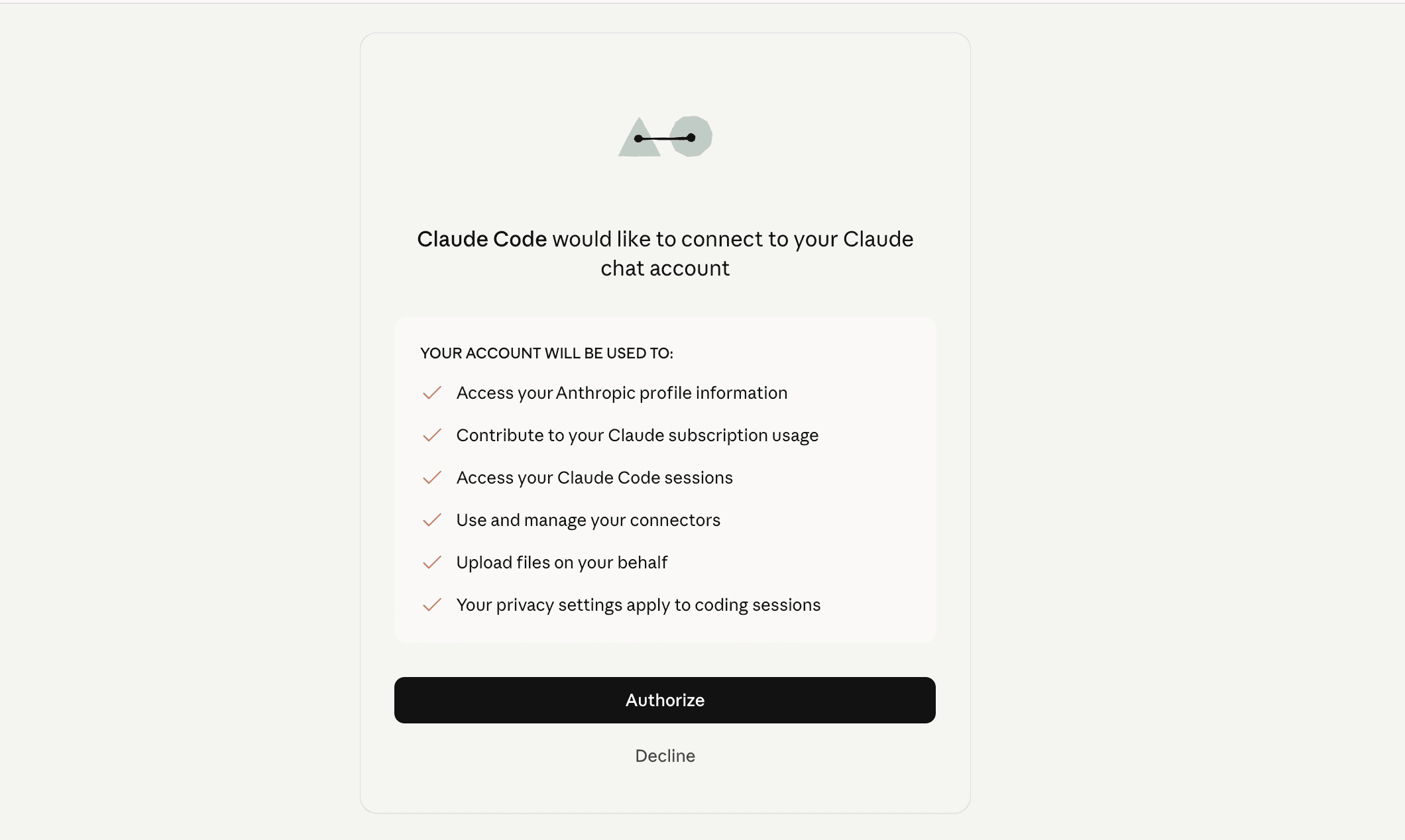
เบราว์เซอร์จะเปิดขึ้นมา กด Authorize เพื่ออนุญาตให้ Claude Code เชื่อมต่อกับบัญชีของคุณYour browser opens. Click Authorize to let Claude Code connect to your account.
กลับมาที่ Terminal ถ้า Claude ถามว่าเชื่อถือโฟลเดอร์นี้ไหม ให้เลือก Yes, trust this folder แล้วกด EnterGo back to Terminal. If Claude asks whether you trust this folder, choose Yes, trust this folder and press Enter.
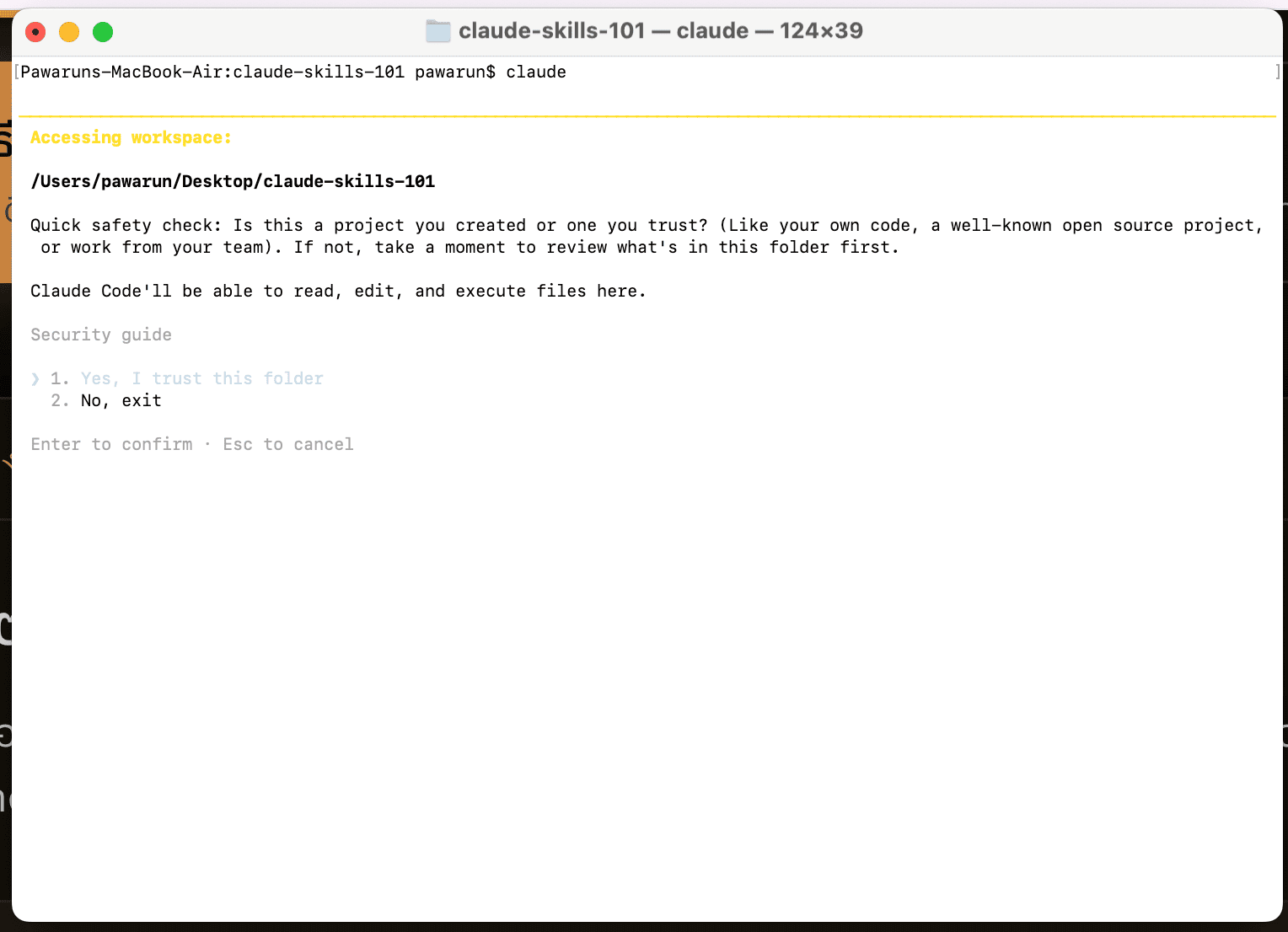
ลองพิมพ์ hi แล้วกด Enter ถ้า Claude ตอบกลับมา แปลว่าพร้อมใช้งานแล้วType hi and press Enter. If Claude replies, you are ready.
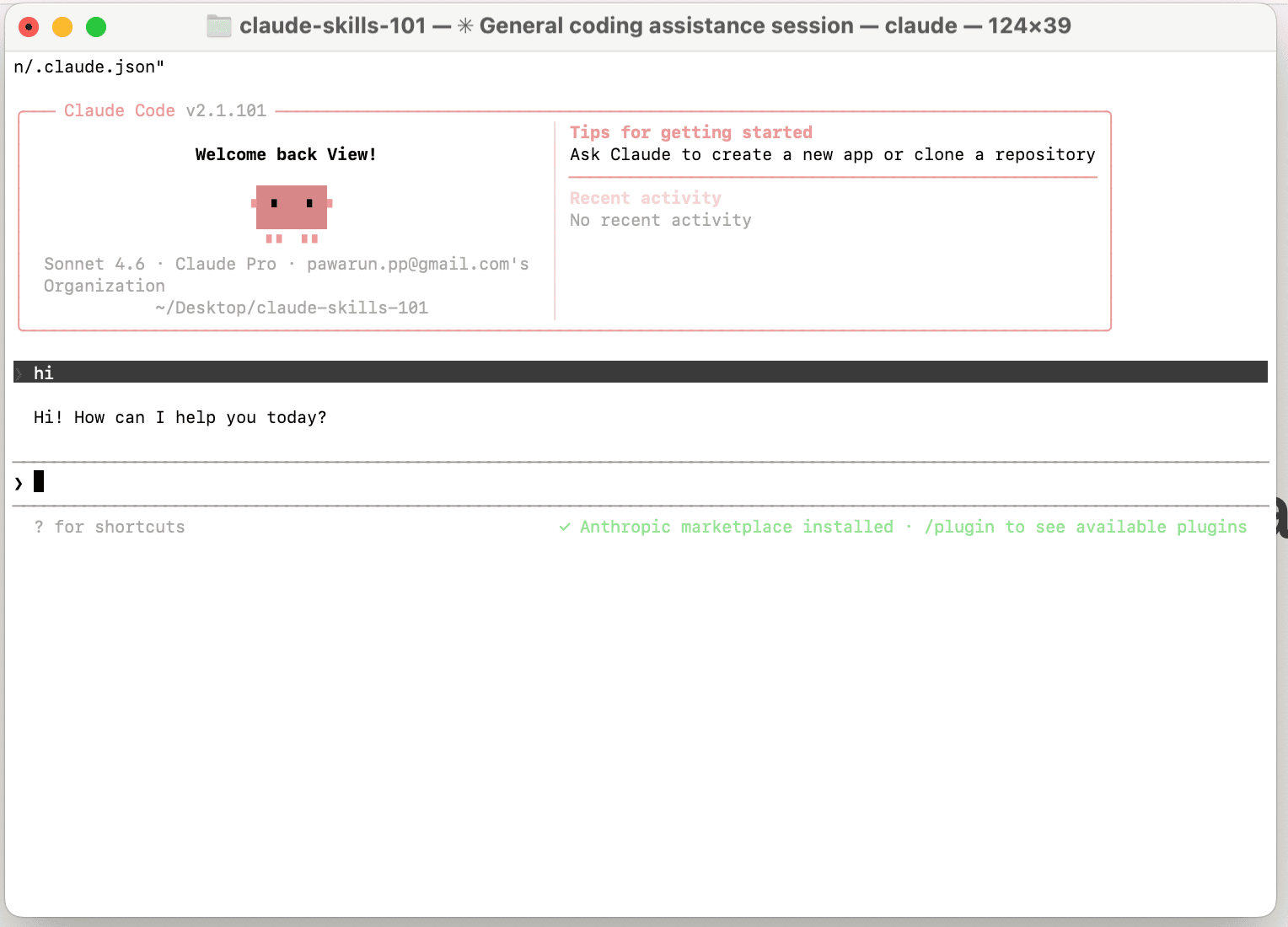
เสร็จแล้ว พร้อมสำหรับวันเรียนDone. You are ready for class day.
ready checklist
- The setup script finished without a clear failure.
claudeopens and you can send a short message.- If something fails, capture the exact error and send it with your OS: Mac or Windows.
FAQ
คำถามที่พบบ่อยFAQ
รวมคำถามจาก setup guide รุ่นก่อนและคำถามที่เจอบ่อยในห้องเรียนCommon questions from the previous setup guide and class support.
Claude Code คืออะไร?What is Claude Code?
Claude Code คือ AI ผู้ช่วยที่ทำงานใน Terminal ของคุณ — สั่งงานเป็นภาษาคนได้ (ทั้งไทยและอังกฤษ) แล้วมันจะสร้างไฟล์ เขียนโค้ด และทำงานให้อัตโนมัติ เหมือนมีผู้ช่วยนั่งอยู่ในคอมพิวเตอร์ของคุณClaude Code is an AI assistant that works in your Terminal — give it instructions in plain language (Thai or English) and it creates files, writes code, and automates tasks for you. Like having an assistant sitting inside your computer.
Claude Code กับ Claude Desktop ต่างกันยังไง?What's the difference between Claude Code and Claude Desktop?
Claude Code = ตัวหลักที่ใช้ในคอร์ส ทำงานใน Terminal พิมพ์คำสั่ง claude เพื่อเปิดใช้
Claude Desktop = แอปหน้าตาคล้าย claude.ai แต่มีฟีเจอร์ Claude Code ฝังอยู่ข้างใน ใช้เป็น ตัวสำรอง ได้ถ้าลง Claude Code ธรรมดาไม่ได้ ดาวน์โหลดที่ claude.ai/downloadClaude Code = the main tool for this course. Works in Terminal — type claude to start.
Claude Desktop = an app that looks like claude.ai but has Claude Code built in. Use it as a backup if you can't install regular Claude Code. Download at claude.ai/download
ต้องสมัคร Pro ถึงจะใช้ได้หรอ?Do I need a Pro plan?
ใช่ Claude Code ต้องใช้แพลน Pro ($20/เดือน) หรือ Max ($100 หรือ $200/เดือน) ถึงจะใช้ได้ แพลนฟรีใช้ Claude Code ไม่ได้Yes. Claude Code requires a Pro ($20/month) or Max ($100 or $200/month) plan. The free plan doesn't include Claude Code access.
พิมพ์ claude แล้วขึ้น "not recognized" หรือ "command not found"I type claude and get "not recognized" or "command not found"
มี 2 สาเหตุหลัก:
1. ยังไม่ได้ติดตั้ง — ให้รันคำสั่งติดตั้งในหน้านี้ก่อน
2. ติดตั้งแล้วแต่ยังไม่ได้ปิด-เปิด Terminal ใหม่ — ปิด Terminal / PowerShell แล้วเปิดใหม่ แล้วลองพิมพ์ claude อีกครั้งTwo main causes:
1. Not installed yet — run the install command on this page first.
2. Installed but did not restart Terminal — close and reopen Terminal / PowerShell, then try typing claude again.
ทำไมต้องปิดแล้วเปิด Terminal ใหม่?Why do I need to close and reopen Terminal?
เวลาติดตั้งโปรแกรมใหม่ Terminal ที่เปิดอยู่จะยังไม่รู้จักโปรแกรมนั้น — ต้องปิดแล้วเปิดใหม่เพื่อให้มันโหลดข้อมูลใหม่ เหมือนต้อง refresh หน้าเว็บหลังอัปเดตWhen you install a new program, an already-open Terminal doesn't know about it yet — you need to close and reopen it so it loads fresh info. Like refreshing a web page after an update.
Windows เตือนเรื่อง execution policyWindows warns about execution policy
เปิด PowerShell แบบ Run as Administrator (คลิกขวาที่ PowerShell → Run as Administrator) แล้วรันคำสั่งนี้หนึ่งครั้ง:Set-ExecutionPolicy -Scope CurrentUser RemoteSigned
จากนั้นลองติดตั้งใหม่อีกครั้งOpen PowerShell as Run as Administrator (right-click PowerShell → Run as Administrator) and run this once:Set-ExecutionPolicy -Scope CurrentUser RemoteSigned
Then try the install again.
หน้าเลือก style มี 6 ตัวเลือก เลือกอันไหนดี?The style screen has 6 options — which one should I pick?
เลือกอันไหนก็ได้ครับ เป็นแค่ธีมสี (สีดำ, สีขาว, ฯลฯ) ถ้าไม่แน่ใจเลือกอันแรก เปลี่ยนได้ทีหลังเสมอPick any — it's just a color theme (dark, light, etc.). If unsure, choose the first one. You can always change it later.
หน้าเลือก function greet คืออะไร?What is the function greet screen?
เป็นแค่คำทักทายที่โปรแกรมจะแสดงตอนเปิด — ไม่มีผลกับการใช้งานจริง เลือกอันแรกได้เลยIt's just a greeting message shown when you start the program — doesn't affect actual usage. Pick the first option.
เข้าสู่ระบบแล้ว ต่อไปทำอะไร?I logged in — what's next?
ถ้าเห็นหน้าจอ Claude พร้อมข้อความต้อนรับ แสดงว่าพร้อมแล้ว! ลองพิมพ์ สวัสดี แล้วกด Enter ดู ถ้า Claude ตอบกลับมา = ใช้งานได้แล้วครับ แค่นี้ก็พอแล้วสำหรับก่อนวันเรียนIf you see the Claude screen with a welcome message, you're ready! Try typing hello and press Enter. If Claude responds = it's working. That's all you need before class day.
ควรเตรียมตัวให้เสร็จเลย หรือรอทำในห้องเรียน?Should I finish setup now or wait until class?
แนะนำให้ทำเลย ยิ่งเตรียมตัวเสร็จเร็ว วันเรียนจริงจะได้มีเวลาลงมือทำจริงเต็มที่ ไม่ต้องเสียเวลาติดตั้งRecommended to finish now. The sooner you're set up, the more hands-on time you'll have in class instead of troubleshooting installs.
สั่ง Claude เป็นภาษาไทยได้ไหม?Can I give Claude instructions in Thai?
ได้ Claude เข้าใจภาษาไทยได้ดี สั่งงานเป็นภาษาไทยหรืออังกฤษก็ได้ตามสะดวกYes! Claude understands Thai well. You can give instructions in Thai or English, whichever is more comfortable.
ถ้าพิมพ์ผิดจะพังไหม?Will I break something if I type the wrong thing?
ไม่พัง คำสั่งที่เราใช้ในคอร์สไม่มีอันไหนทำให้คอมพิวเตอร์เสียหาย ถ้าทำอะไรผิดพลาด Claude จะถามก่อนทำเสมอ และกด Ctrl+C เพื่อยกเลิกได้ทุกเมื่อNo. The commands we use in this course can't damage your computer. If something goes wrong, Claude always asks before acting, and you can press Ctrl+C to cancel anytime.
Next: use the Terminal basics guide to learn how to open Claude Code from the right folder.
คู่มือนี้มีเป้าหมายเดียวครับ: เตรียมเครื่องให้พร้อมใช้ Claude Code ให้เครื่องพิมพ์คำว่า claude ได้จริง
เราจะใช้สคริปต์ติดตั้งของ Mervia เพราะมันเรียกตัวติดตั้งทางการของ Claude Code ให้ ติดตั้ง Node.js แล้วเช็กต่อในจุดที่คนมักติดกัน เช่น PATH และการตรวจสอบตอนท้าย
01. เช็กบัญชี Claude
ให้ใช้บัญชี Claude ที่จะใช้กับ Claude Code บัญชีนี้ควรมีสิทธิ์ใช้ Claude Code เช่น Pro, Max หรือบัญชีองค์กรที่เตรียมไว้ให้
ในวิดีโอผมจะชี้ให้ดูว่าหน้าบัญชีหรือแพ็กเกจอยู่ตรงไหน แต่จะไม่พาไปสมัครหรือจ่ายเงินในวิดีโอนี้ ถ้าบัญชียังไม่พร้อม ให้จัดการตรงนี้ก่อนครับ
02. รันสคริปต์ติดตั้ง
Terminal บน Mac และ PowerShell บน Windows คือโปรแกรมที่มากับเครื่องอยู่แล้ว ไม่ต้องติดตั้งอะไรเพิ่มTerminal on Mac and PowerShell on Windows are already on your computer. Nothing extra to install.
หน้าตาเป็นหน้าต่างสีเข้ม ๆ ที่ให้เราพิมพ์คำสั่งเป็นข้อความเพื่อสั่งให้คอมพิวเตอร์ทำงาน แทนการคลิกเมาส์It is a text window where you type commands to tell your computer what to do instead of clicking with a mouse.
วิธีเปิดบน Mac: กด Cmd + Space พิมพ์ Terminal แล้วกด EnterOn Mac: press Cmd + Space, type Terminal, then press Enter.
วิธีเปิดบน Windows: กดปุ่ม Windows พิมพ์ PowerShell แล้วกด EnterOn Windows: press the Windows key, type PowerShell, then press Enter.
ไม่ต้องกลัวพิมพ์ผิด ถ้าพิมพ์คำสั่งผิด เครื่องแค่ตอบว่าไม่รู้จักคำสั่งนั้น ไม่มีอะไรเสียหายDo not worry about typos. If you mistype a command, the computer just says it does not recognize it. Nothing breaks.
- 01.เปิด Terminal ด้วย
Cmd + Spaceแล้วพิมพ์TerminalOpen Terminal withCmd + Space, then typeTerminal. - 02.คัดลอกคำสั่งด้านบน วางลงใน Terminal แล้วกด EnterCopy the command above, paste it into Terminal, then press Enter.
ถ้าติดตั้งสำเร็จ จะเห็นข้อความสรุปประมาณนี้:If installation is successful, you should see a summary like this:
- 01.ปิด Terminal แล้วเปิดใหม่Close Terminal and reopen it
- 02.พิมพ์
claudeแล้วกด Enter เพื่อเข้าสู่การตั้งค่าครั้งแรกTypeclaudeand press Enter to start the first-time setup
03. เช็กว่าเปิดใช้งานได้จริง
หลังสคริปต์ทำงานจบ ให้ปิด Terminal หรือ PowerShell แล้วเปิดใหม่หนึ่งรอบ จากนั้นรัน:
claude
Claude Code อาจเปิดเบราว์เซอร์เพื่อให้ login และ authorize ให้ใช้บัญชี Claude ที่จะใช้กับ Claude Code
ทำตามหน้าจอด้านล่างให้จบ ถ้าเลือกผิดไม่เป็นไร ทุกอย่างเปลี่ยนทีหลังได้Follow the screens below. If you choose the wrong option, it is fine; everything can be changed later.
เลือก style หรือธีมสี ใช้ลูกศรขึ้นลงเพื่อเลือก แล้วกด Enter ถ้าไม่แน่ใจเลือกอันแรกได้เลย เปลี่ยนทีหลังได้Choose a style or color theme. Use the arrow keys, then press Enter. If unsure, choose the first option. You can change it later.
เลือก login method เป็นอันแรก Claude account with subscription แล้วกด EnterChoose the first login method: Claude account with subscription. Then press Enter.
เบราว์เซอร์จะเปิดขึ้นมา กด Authorize เพื่ออนุญาตให้ Claude Code เชื่อมต่อกับบัญชีของคุณYour browser opens. Click Authorize to let Claude Code connect to your account.
กลับมาที่ Terminal ถ้า Claude ถามว่าเชื่อถือโฟลเดอร์นี้ไหม ให้เลือก Yes, trust this folder แล้วกด EnterGo back to Terminal. If Claude asks whether you trust this folder, choose Yes, trust this folder and press Enter.
ลองพิมพ์ hi แล้วกด Enter ถ้า Claude ตอบกลับมา แปลว่าพร้อมใช้งานแล้วType hi and press Enter. If Claude replies, you are ready.
เสร็จแล้ว พร้อมสำหรับวันเรียนDone. You are ready for class day.
checklist ว่าพร้อมแล้ว
- สคริปต์ติดตั้งจบโดยไม่มี failure ชัดเจน
- พิมพ์
claudeแล้วส่งข้อความสั้น ๆ ได้ - ถ้ามี error ให้จับภาพหน้าจอหรือคัดลอกข้อความ error แล้วส่งให้ผู้สอน พร้อมบอกว่าใช้ Mac หรือ Windows
คำถามที่พบบ่อย
คำถามที่พบบ่อยFAQ
รวมคำถามจาก setup guide รุ่นก่อนและคำถามที่เจอบ่อยในห้องเรียนCommon questions from the previous setup guide and class support.
Claude Code คืออะไร?What is Claude Code?
Claude Code คือ AI ผู้ช่วยที่ทำงานใน Terminal ของคุณ — สั่งงานเป็นภาษาคนได้ (ทั้งไทยและอังกฤษ) แล้วมันจะสร้างไฟล์ เขียนโค้ด และทำงานให้อัตโนมัติ เหมือนมีผู้ช่วยนั่งอยู่ในคอมพิวเตอร์ของคุณClaude Code is an AI assistant that works in your Terminal — give it instructions in plain language (Thai or English) and it creates files, writes code, and automates tasks for you. Like having an assistant sitting inside your computer.
Claude Code กับ Claude Desktop ต่างกันยังไง?What's the difference between Claude Code and Claude Desktop?
Claude Code = ตัวหลักที่ใช้ในคอร์ส ทำงานใน Terminal พิมพ์คำสั่ง claude เพื่อเปิดใช้
Claude Desktop = แอปหน้าตาคล้าย claude.ai แต่มีฟีเจอร์ Claude Code ฝังอยู่ข้างใน ใช้เป็น ตัวสำรอง ได้ถ้าลง Claude Code ธรรมดาไม่ได้ ดาวน์โหลดที่ claude.ai/downloadClaude Code = the main tool for this course. Works in Terminal — type claude to start.
Claude Desktop = an app that looks like claude.ai but has Claude Code built in. Use it as a backup if you can't install regular Claude Code. Download at claude.ai/download
ต้องสมัคร Pro ถึงจะใช้ได้หรอ?Do I need a Pro plan?
ใช่ Claude Code ต้องใช้แพลน Pro ($20/เดือน) หรือ Max ($100 หรือ $200/เดือน) ถึงจะใช้ได้ แพลนฟรีใช้ Claude Code ไม่ได้Yes. Claude Code requires a Pro ($20/month) or Max ($100 or $200/month) plan. The free plan doesn't include Claude Code access.
พิมพ์ claude แล้วขึ้น "not recognized" หรือ "command not found"I type claude and get "not recognized" or "command not found"
มี 2 สาเหตุหลัก:
1. ยังไม่ได้ติดตั้ง — ให้รันคำสั่งติดตั้งในหน้านี้ก่อน
2. ติดตั้งแล้วแต่ยังไม่ได้ปิด-เปิด Terminal ใหม่ — ปิด Terminal / PowerShell แล้วเปิดใหม่ แล้วลองพิมพ์ claude อีกครั้งTwo main causes:
1. Not installed yet — run the install command on this page first.
2. Installed but did not restart Terminal — close and reopen Terminal / PowerShell, then try typing claude again.
ทำไมต้องปิดแล้วเปิด Terminal ใหม่?Why do I need to close and reopen Terminal?
เวลาติดตั้งโปรแกรมใหม่ Terminal ที่เปิดอยู่จะยังไม่รู้จักโปรแกรมนั้น — ต้องปิดแล้วเปิดใหม่เพื่อให้มันโหลดข้อมูลใหม่ เหมือนต้อง refresh หน้าเว็บหลังอัปเดตWhen you install a new program, an already-open Terminal doesn't know about it yet — you need to close and reopen it so it loads fresh info. Like refreshing a web page after an update.
Windows เตือนเรื่อง execution policyWindows warns about execution policy
เปิด PowerShell แบบ Run as Administrator (คลิกขวาที่ PowerShell → Run as Administrator) แล้วรันคำสั่งนี้หนึ่งครั้ง:Set-ExecutionPolicy -Scope CurrentUser RemoteSigned
จากนั้นลองติดตั้งใหม่อีกครั้งOpen PowerShell as Run as Administrator (right-click PowerShell → Run as Administrator) and run this once:Set-ExecutionPolicy -Scope CurrentUser RemoteSigned
Then try the install again.
หน้าเลือก style มี 6 ตัวเลือก เลือกอันไหนดี?The style screen has 6 options — which one should I pick?
เลือกอันไหนก็ได้ครับ เป็นแค่ธีมสี (สีดำ, สีขาว, ฯลฯ) ถ้าไม่แน่ใจเลือกอันแรก เปลี่ยนได้ทีหลังเสมอPick any — it's just a color theme (dark, light, etc.). If unsure, choose the first one. You can always change it later.
หน้าเลือก function greet คืออะไร?What is the function greet screen?
เป็นแค่คำทักทายที่โปรแกรมจะแสดงตอนเปิด — ไม่มีผลกับการใช้งานจริง เลือกอันแรกได้เลยIt's just a greeting message shown when you start the program — doesn't affect actual usage. Pick the first option.
เข้าสู่ระบบแล้ว ต่อไปทำอะไร?I logged in — what's next?
ถ้าเห็นหน้าจอ Claude พร้อมข้อความต้อนรับ แสดงว่าพร้อมแล้ว! ลองพิมพ์ สวัสดี แล้วกด Enter ดู ถ้า Claude ตอบกลับมา = ใช้งานได้แล้วครับ แค่นี้ก็พอแล้วสำหรับก่อนวันเรียนIf you see the Claude screen with a welcome message, you're ready! Try typing hello and press Enter. If Claude responds = it's working. That's all you need before class day.
ควรเตรียมตัวให้เสร็จเลย หรือรอทำในห้องเรียน?Should I finish setup now or wait until class?
แนะนำให้ทำเลย ยิ่งเตรียมตัวเสร็จเร็ว วันเรียนจริงจะได้มีเวลาลงมือทำจริงเต็มที่ ไม่ต้องเสียเวลาติดตั้งRecommended to finish now. The sooner you're set up, the more hands-on time you'll have in class instead of troubleshooting installs.
สั่ง Claude เป็นภาษาไทยได้ไหม?Can I give Claude instructions in Thai?
ได้ Claude เข้าใจภาษาไทยได้ดี สั่งงานเป็นภาษาไทยหรืออังกฤษก็ได้ตามสะดวกYes! Claude understands Thai well. You can give instructions in Thai or English, whichever is more comfortable.
ถ้าพิมพ์ผิดจะพังไหม?Will I break something if I type the wrong thing?
ไม่พัง คำสั่งที่เราใช้ในคอร์สไม่มีอันไหนทำให้คอมพิวเตอร์เสียหาย ถ้าทำอะไรผิดพลาด Claude จะถามก่อนทำเสมอ และกด Ctrl+C เพื่อยกเลิกได้ทุกเมื่อNo. The commands we use in this course can't damage your computer. If something goes wrong, Claude always asks before acting, and you can press Ctrl+C to cancel anytime.
ขั้นต่อไป: อ่าน คู่มือ Terminal พื้นฐาน เพื่อเปิด Claude Code จากโฟลเดอร์ที่ถูกต้อง